This section will show you how to create a challenge and also explain what option you have for your challenges.
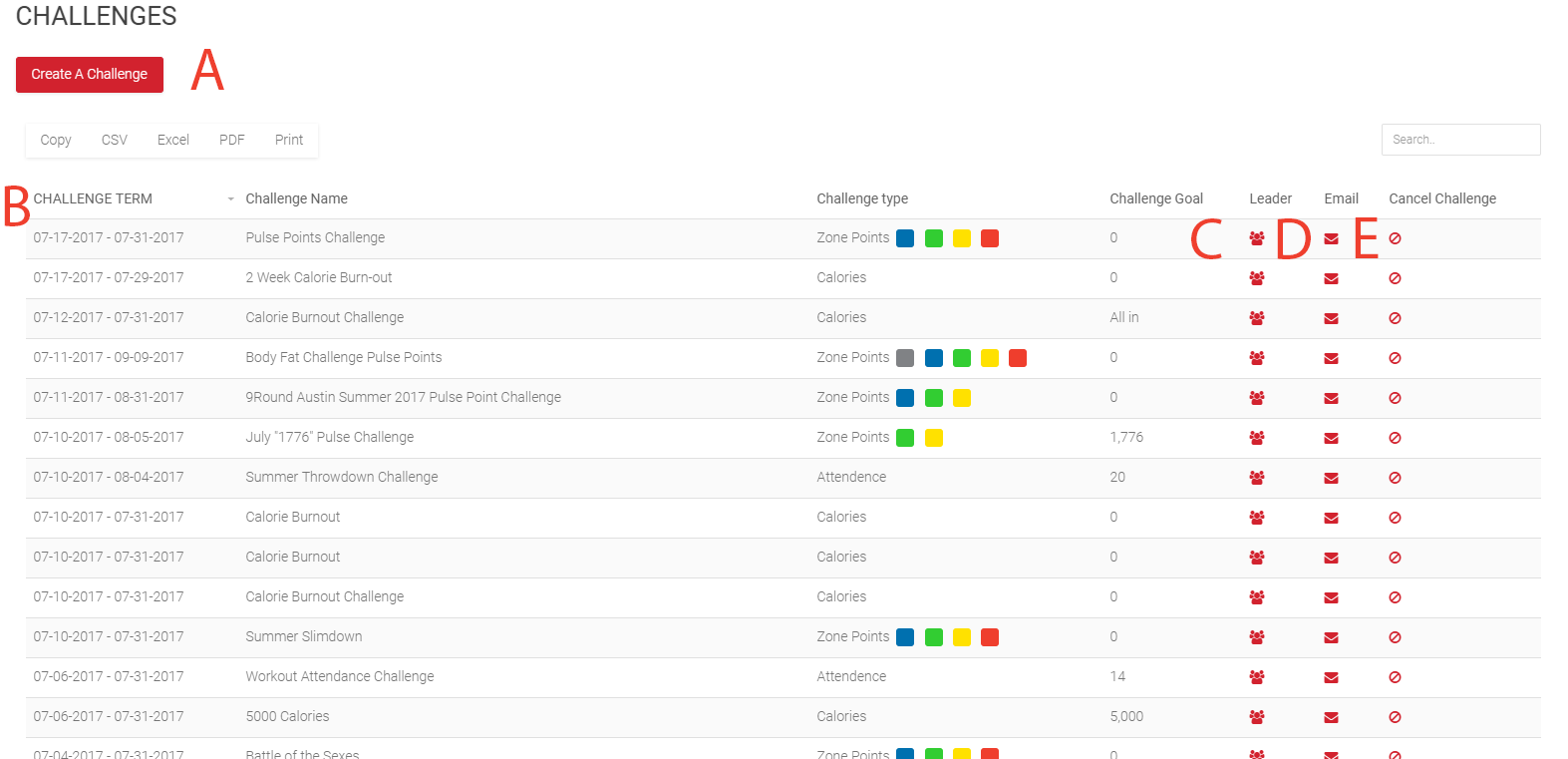
A- Click on the "Create Challenge" to create a challenge
B- This list will display all of your challenges that you have created. This will list out your challenge details such as challenge type and goals, etc
C- Clicking on the leader button will display the leader for the current challenge.
D- Clicking on the email button will allow you to send an update email to all of your clients.
E- Clicking on the cancel email button will cancel the challenge.

When you click on the "Create Challenge" button, it will bring you to a screen like above. You will have to set the parameter for the challenge.
A- Enter a name of the challenge. This name will be what the challenge is called.
B- Select the dates for the challenge
C- Select the challenge type
Zone Time - Time spend in certain zones
Zone Points - Points accumulated in certain zones
Attendance - Total workouts accumulated
Calories - Calorie burn challenge
D- If you do not want to set a goal, you can check this option off.
E- Enter your goal for the challenge
F- If you check this button off, the contest will end once the goal is met.
G- Depending on the challenge you will see these zones. You can select which zones you want to focus on.
H- Select the location that you would like to participate in this challenge.
I- Click on this button if you DO NOT want to send an email to notify all of the members of your club that owns a Heart rate monitor. (Your challenge will be created)
J- Click on this button if you WANT to send an email to notify all of the members of your club that owns a Heart rate monitor. (You will be taken to the screen below to create the participant email)
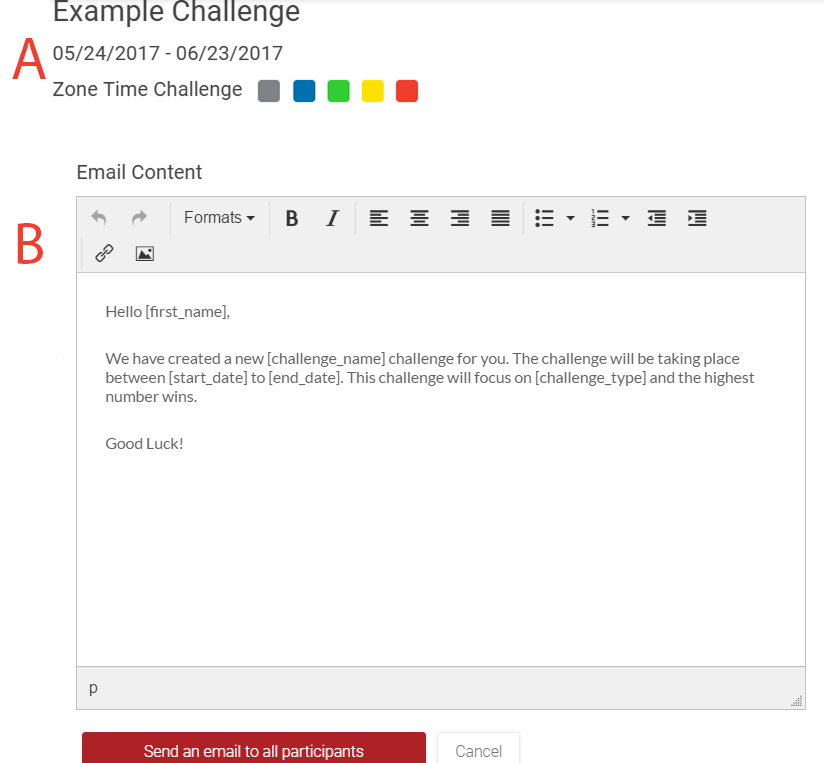
When you click on the "Save Challenge and email Participate" button, it will bring you to a screen like above. You will have to create the email for your participants
A- This Section will contain your challenge details.
B- This section will contain your email template for your email. You can manually enter information into the template or you can use our predefined characters. If these characters are inserted into the template they will pull the information from the challenge and insert it into the email.first_name
[first_name] = First name of participant
[challenge_name] = Challenge Name
[start_date] = Challenge start date
[end_date] = Challenge end date
[challege_type] = Challenge Type (Zone time, Zone Points, Attendance, Calories)
[goal] = Challenge Goal